Floor Plan Symbols. Size
The Floor Plan Symbols tool is used to add graphical symbols and sizes to your drawing. It helps accurately represent the layout and make the project clear for contractors and clients.
This function is only available in 2D mode. It is not available in 3D or Walk modes.
How to open the annotations menu
- Switch to 2D mode.
- Click on the «Floor Plan Symbols» section in the left-hand menu.
- A panel with drawing tools and a catalog of annotation symbols will open.
- Select the desired tool by left-clicking on it. You can also use hotkeys — they are displayed in the bottom right corner of each tool.

Working with the «Size» tool
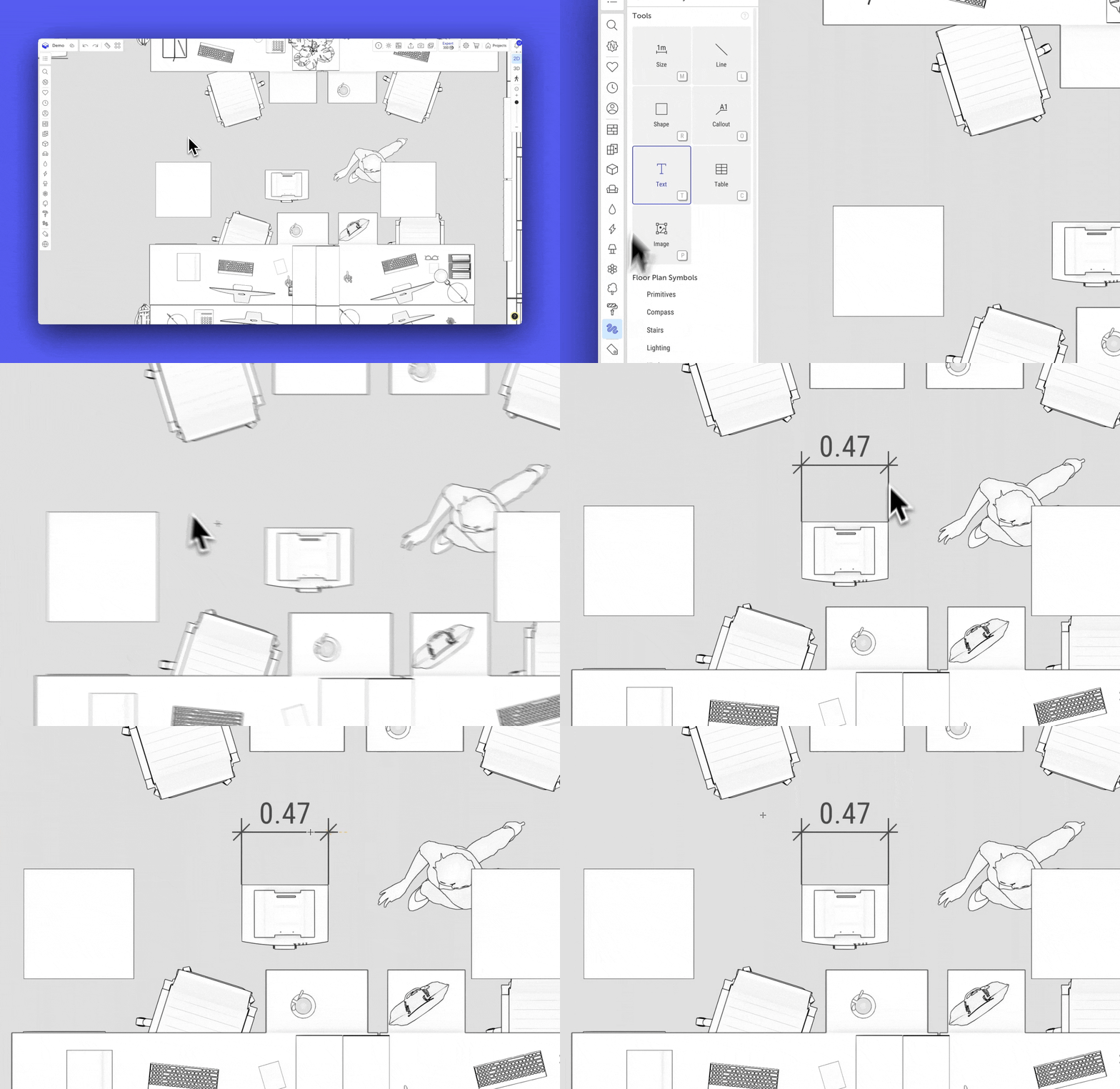
The «Size» tool allows you to add a line that shows the distance between two points on the plan.
How to add a size:
- Select the «Size» tool.
- Click to set the first point.
- Click again to set the second point.
- Move the cursor and click to set the height of the extension lines.
Once placed, the size tool remains active, allowing you to continue adding new sizes.
The distance between the two points will be shown on the size line.
Copying sizes
You can copy a size in several ways:
- Select a size → press
Ctrl+C, thenCtrl+V. - Select a size → hold
Altand drag it. - After copying with
Alt, you can create more copies usingCtrl+D.
On macOS, use Cmd ⌘ instead of Ctrl, and Option ⌥ instead of Alt.
Size settings menu
When a size line is selected, the «Drawing object — Size» settings menu appears on the right. It includes several blocks.
Position settings:
- Above all (arrow up) — moves the size above all other annotations.
- Under all (arrow down) — moves the size below all other annotations.
- Apply to all (paintbrush) — applies the current size style to all sizes on the current floor.
- Delete (trash can) — deletes the selected size. You can also press
Deleteon your keyboard.
Line style and color:
- Start / End — select from 4 predefined styles for connecting extension and size lines.
- Color — choose the line color using the Color picker.
Text settings:
- Font size — ranges from 8 to 72 pt. You can change it using the slider, up/down arrows, direct input in the text field.
- If you enter a value less than 8 or more than 72, the app will automatically set it to 8 or 72.
- Font color — choose the number color using the Color picker.
- Flip — changes the position of the size number above or below the line.
Size value:
- Length — the distance between the extension lines. You can adjust it using the slider, the arrows, manual input of a non-negative number. When the value is changed, the right extension line shifts accordingly.
- Own text — when this checkbox is enabled, the «Length» field changes to «Value», where you can enter any number or text (e.g., «cabinet width»). Extension line positions remain unchanged.

Units. If the «Units» checkbox is enabled, the current units (mm, m, etc.) are added to the size number.
Units are only added to automatically calculated values.
If «Own text» is enabled, units are not shown.
If you have any questions, found an error, or couldn't find the information you need, please contact us at support@planoplan.com, use the built-in support on the website or in th app (icon in the bottom right corner).