How to Upgrade Your Pricing Plan
Planoplan offers several pricing plans that differ in features and available functionality. While working on a project, you may sometimes need access to features from a higher pricing plan — for example, to create a virtual tour, use tags, or render scenes with complex materials.
To make this transition convenient, the app allows you to upgrade your pricing plan without losing the remaining days of your current subscription. When upgrading to a higher plan, the unused days of your current pricing plan are automatically converted into a discount for the new plan.
How to Upgrade Your Plan
To upgrade to a higher pricing plan:
- Open the “Store” in the app.
- Select the pricing plan you want.
- Add the plan to the cart.
- Open the cart to complete the purchase.
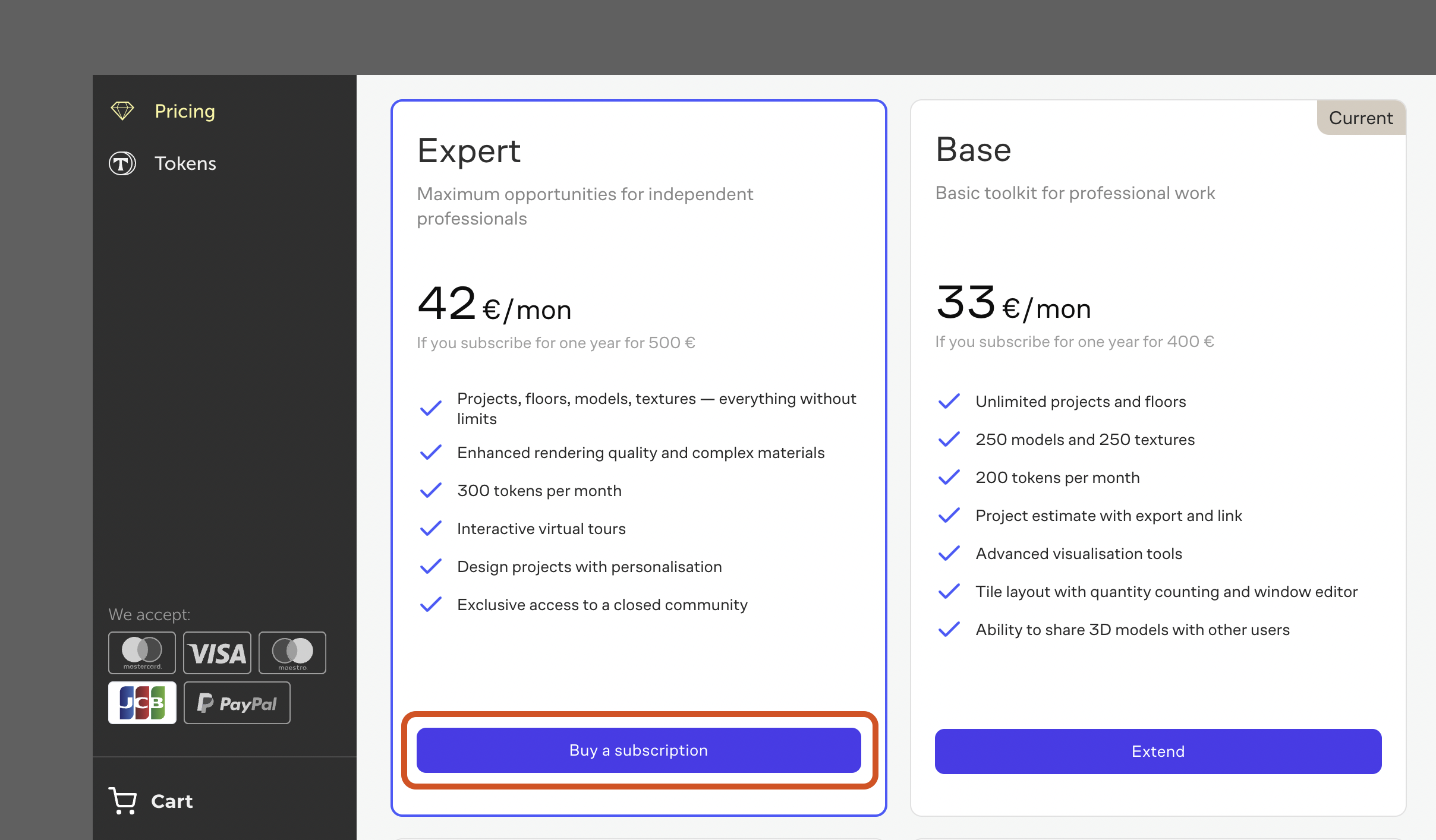
When you open the cart, the app automatically detects your current pricing plan and the number of remaining subscription days. These remaining days are taken into account when calculating the price of the new plan.
You will see the final price with a discount applied for the unused days of your current plan.
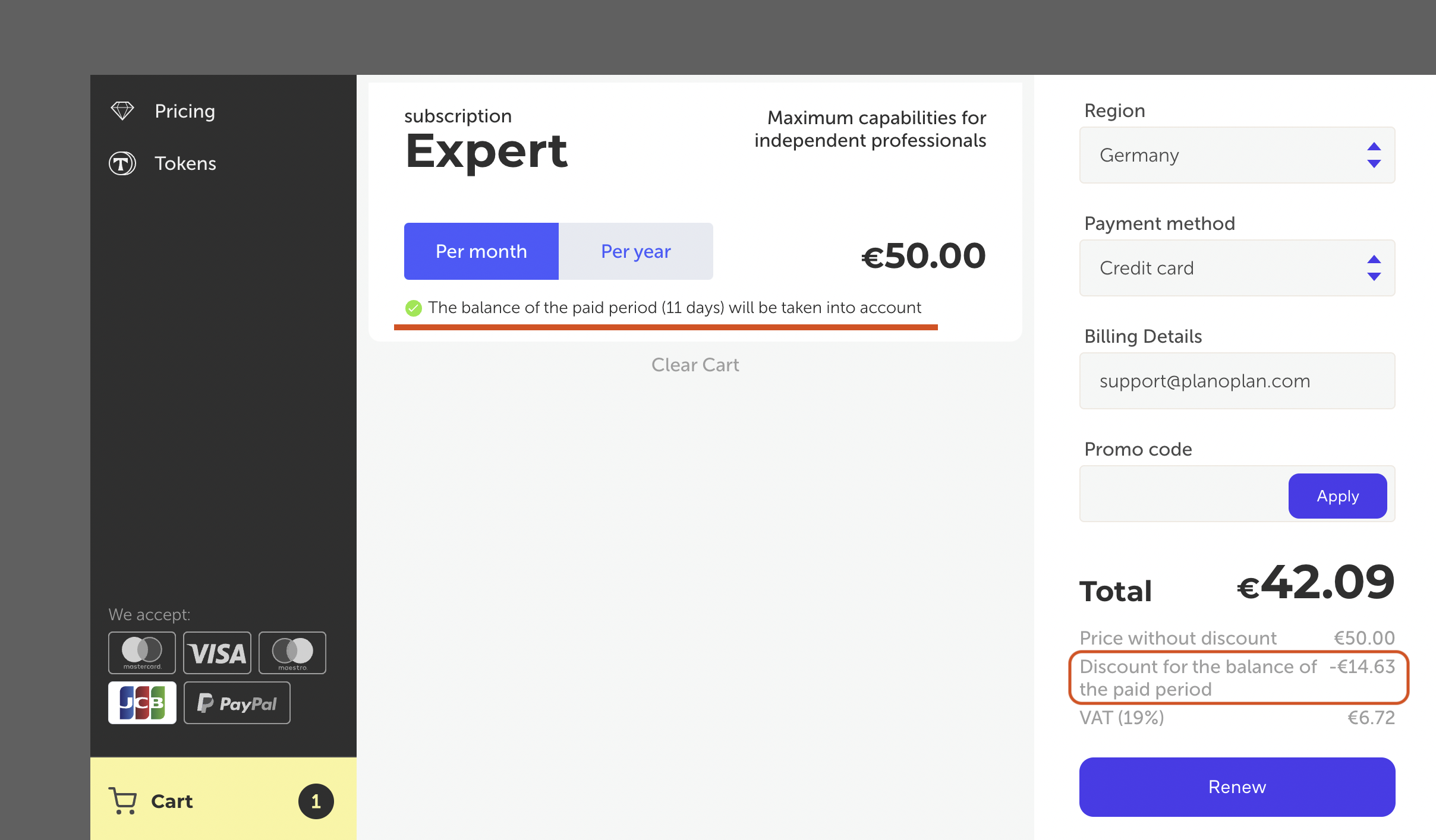
You can then purchase a new pricing plan with either a monthly subscription or an annual subscription. The remaining days of your previous plan are not lost — their value is automatically applied to the cost of the new pricing plan.
If you have any questions, found an error, or couldn't find the information you need, please contact us at support@planoplan.com, use the built-in support on the website or in th app (icon in the bottom right corner).