Surface Design
"Surface Design" is a dedicated mode in Planoplan that allows you to create complex finishing solutions for walls, floors, and ceilings. With this feature, you can add decorative areas with separate materials, create tile layouts, customize grout joints, create niches, and build other architectural elements.
This feature is useful for creating accent walls, decorative inserts, tile layouts, multi-level ceilings, and other custom design solutions.
How to Open "Surface Design"
You can open the "Surface Design" mode from both 2D and 3D modes. The type of surface available for editing depends on the selected object.
In 2D Mode
- Select a room by clicking on its floor.
- The room settings panel will open automatically on the right side of the screen.
- Click the "Surface Design" button.
The floor surface editing mode will open.
In 3D Mode
- Select a wall, floor, or ceiling.
- The settings panel for the selected element will open automatically on the right side of the screen.
- Click the "Surface Design" button.
The surface editing mode for the selected element will open.

Workspace
"Surface Design" opens in a separate workspace.
The displayed content depends on the selected element:
- for walls, all walls of the room are displayed;
- for floors, the floor surface of the entire level is displayed;
- for ceilings, the ceiling surface of the entire level is displayed.
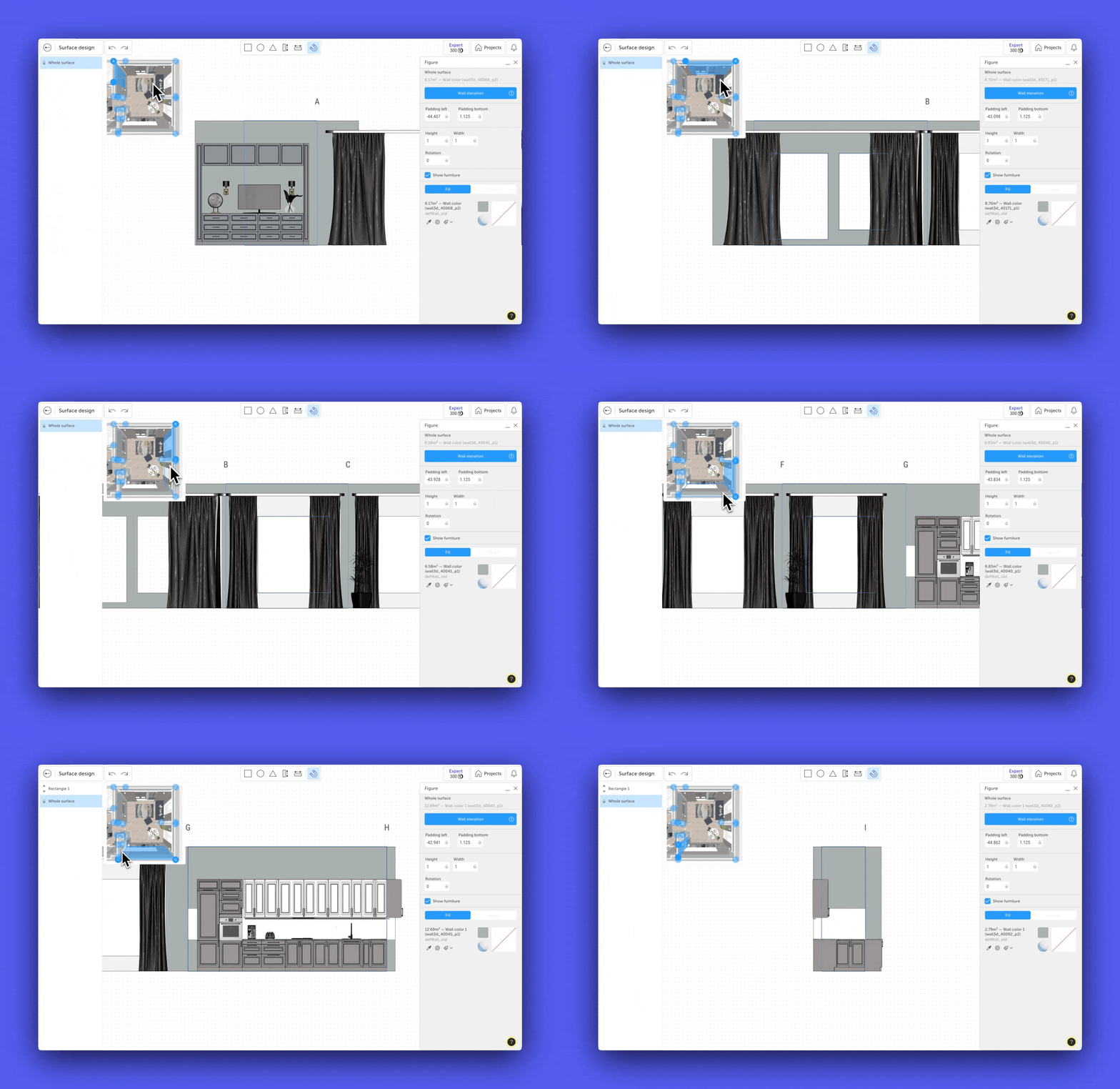
When working with walls, a room minimap is displayed in the upper-left corner.
The minimap allows you to:
- highlight a wall by hovering over it;
- select a wall with a click;
- automatically focus the camera on the selected wall.
To move around the workspace, hold the right mouse button and drag.
The workspace displays the selected wall and its two adjacent walls. This makes it possible to create continuous patterns and correctly align tile layouts across wall joints.
For floors and ceilings, the entire floor or ceiling of the level is displayed. This allows you to work with layouts and decorative elements across the whole area.
Adding Surfaces
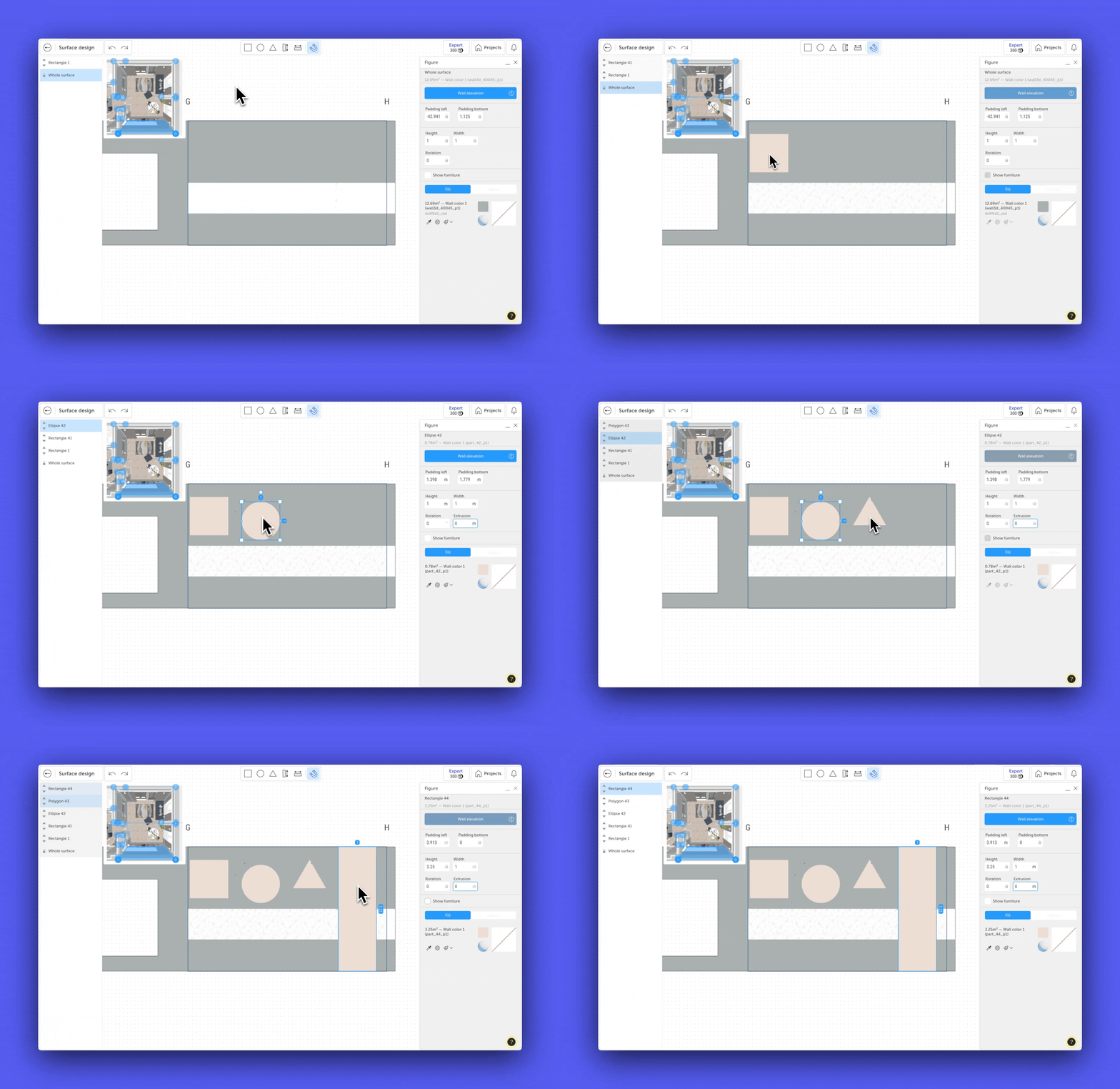
The surface library is located at the top of the window and contains the tools required to create a custom design.
To add a surface:
- Click and hold it with the left mouse button.
- Drag it into the workspace.
The following surface types are available:
- rectangular;
- oval;
- polygonal;
- full height;
- full width.
Each surface can have its own color, material, and texture.
Creating a Tile Layout
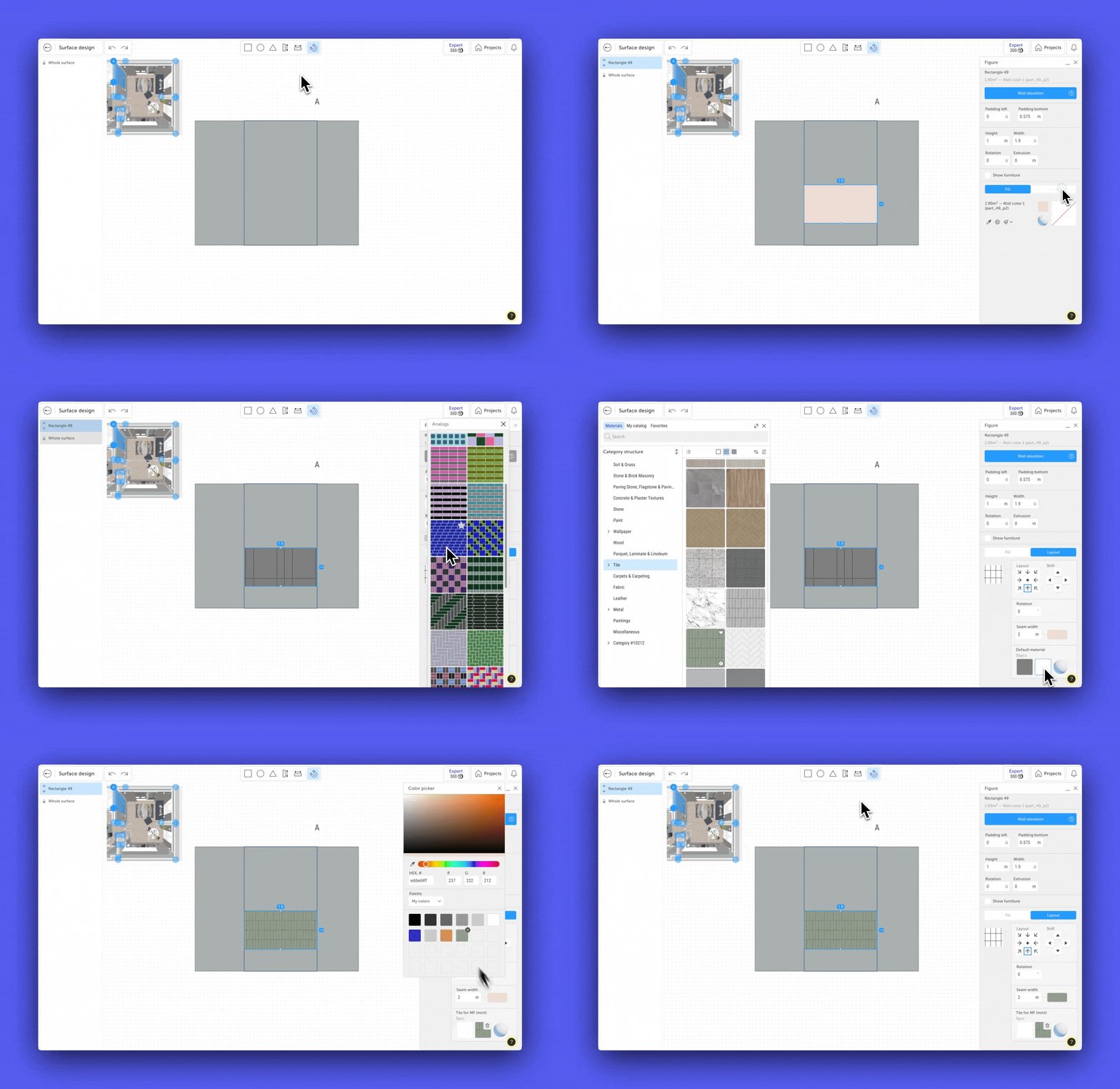
After adding a surface, you can use it to create a tile layout.
To do this:
- Select the surface.
- In the right panel, switch from "Fill" to "Layout".
- Choose a layout pattern.
After selecting a pattern, the following settings become available:
- assigning materials to individual tile faces;
- defining the layout starting point;
- offsetting the layout to align joints;
- rotating the layout by a specified angle;
- setting grout width from 2 mm to 20 mm;
- selecting grout color.
Tile dimensions are based on the actual texture size. Therefore, each uploaded texture must have its real dimensions specified in the lot settings.
If texture dimensions are configured correctly, the app automatically calculates the required number of tiles.
Managing Surfaces
Created surfaces can be copied using keyboard shortcuts:
- Ctrl+C and Ctrl+V — Windows, cmd ⌘ + C and cmd ⌘ + V — macOS.
- by holding Alt (option ⌥ on macOS) and dragging the surface + copy Ctrl+D — Windows, cmd ⌘ + D — macOS.
If multiple surfaces have been added, their order can be changed using the move up and move down controls in the surface list on the left panel.
Each surface can be configured independently.
Surface Parameters
The following settings are available for each surface:
- padding left;
- padding bottom;
- width;
- height;
- rotation.
Polygonal surfaces also allow you to specify the number of vertices.
These parameters help position and adjust decorative elements with precision.
Surface dimensions can also be adjusted directly in the workspace using the controls displayed on the edges of the selected surface.
To resize a surface proportionally, hold the Shift key while changing its size.
Surface Extrusion
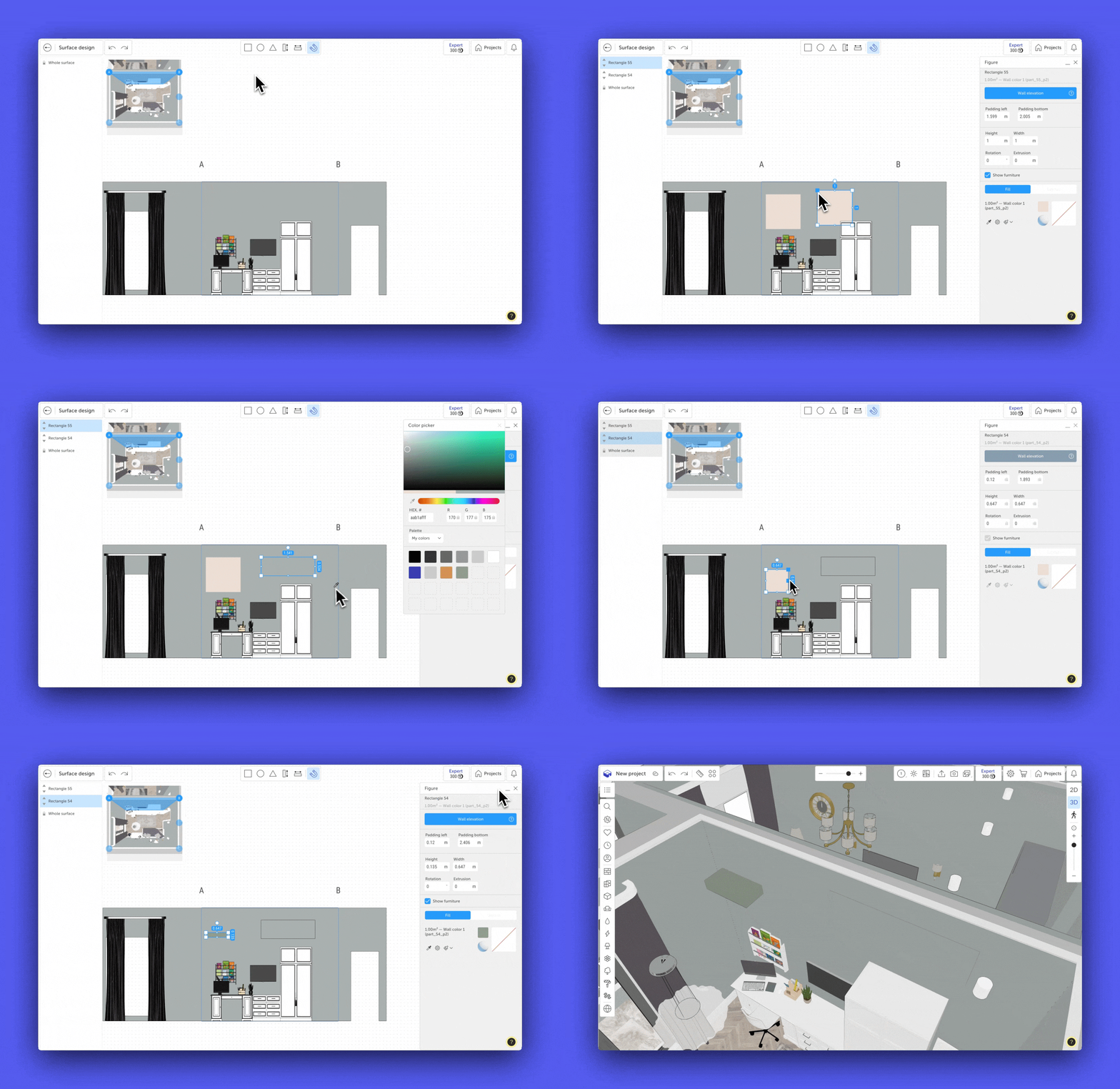
Any surface can use the extrusion parameter.
Positive values create a protrusion, while negative values create a recess in the surface.
Depth limitations:
- floors and ceilings — up to 100 mm;
- walls — limited by the wall thickness.
Extrusion can be used to create:
- niches for recessed lighting;
- curtain recesses;
- decorative indentations;
- shelves and protruding elements.
Saving a Surface Design
After creating a surface design, you can save it to your personal catalog for future use in other projects.
To save a design:
- Finish editing the surface.
- Exit the "Surface Design" mode.
- In the settings of the selected wall, floor, or ceiling, click the save button (floppy disk icon) located next to the "Surface Design" button.
After saving, the design will appear in your custom catalog under the "Unassigned" folder.
The design type is preserved automatically:
- wall designs can only be applied to walls;
- floor designs can only be applied to floors;
- ceiling designs can only be applied to ceilings.
Applying a Design to Other Surfaces
After creating a design, the "Brush" tool becomes available to the right of the "Surface Design" button.
This tool allows you to quickly transfer a design to another surface of the same type:
- from wall to wall;
- from floor to floor;
- from ceiling to ceiling.
To transfer a design:
- Select the surface that contains the design.
- Click the "Brush" tool.
- Select the target surface.
The design will be fully copied to the selected surface.

Furniture Visibility
You can hide furniture in the workspace when necessary.
To do this, clear the "Show Furniture" checkbox in the right settings panel.
This allows you to focus on surface editing without visual distractions.
If you have any questions, found an error, or couldn't find the information you need, please contact us at support@planoplan.com, use the built-in support on the website or in th app (icon in the bottom right corner).